

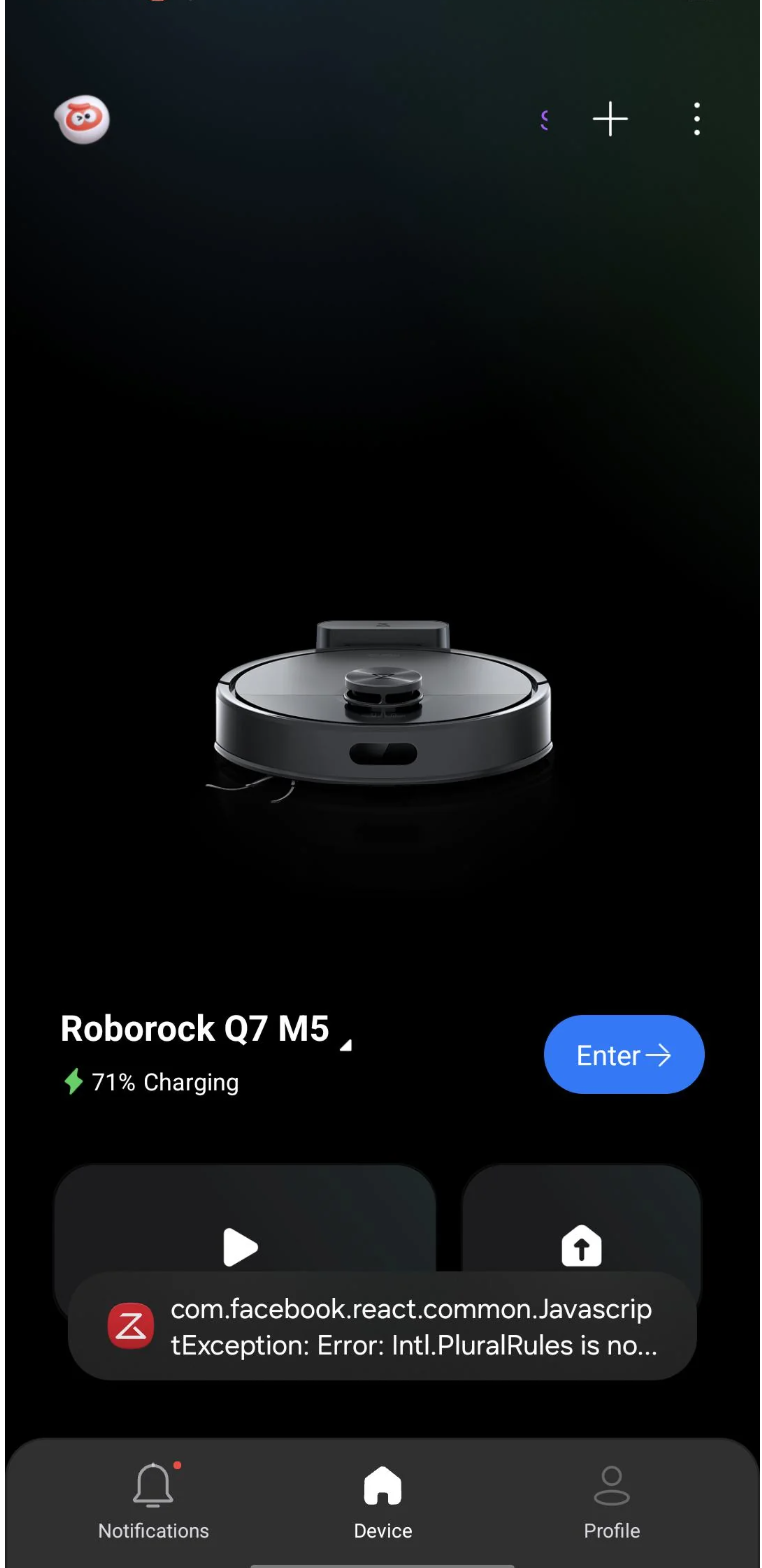
As someone who has tested and reviewed smart home vacuums for years (and routinely hunts down the absolute best Roborock discount code offers for my readers!), having my own daily cleaning companion suddenly throw a Meta software developer error sent me straight into troubleshooting mode.
After spent days diagnosing this across multiple phones, testing different reset combinations, and figuring out why on earth Facebook’s name is on a vacuum app screen, I finally found the exact sequence that completely fixes it. Here is my complete breakdown of what caused the glitch and how you can restore your maps in under 5 minutes without losing your saved home floor plans!
Quick Answer: How to Fix the Roborock Map Crash Fast
To permanently fix the Roborock app Facebook React exception error:
- Do NOT perform a full factory reset on your vacuum (you will lose your floor map).
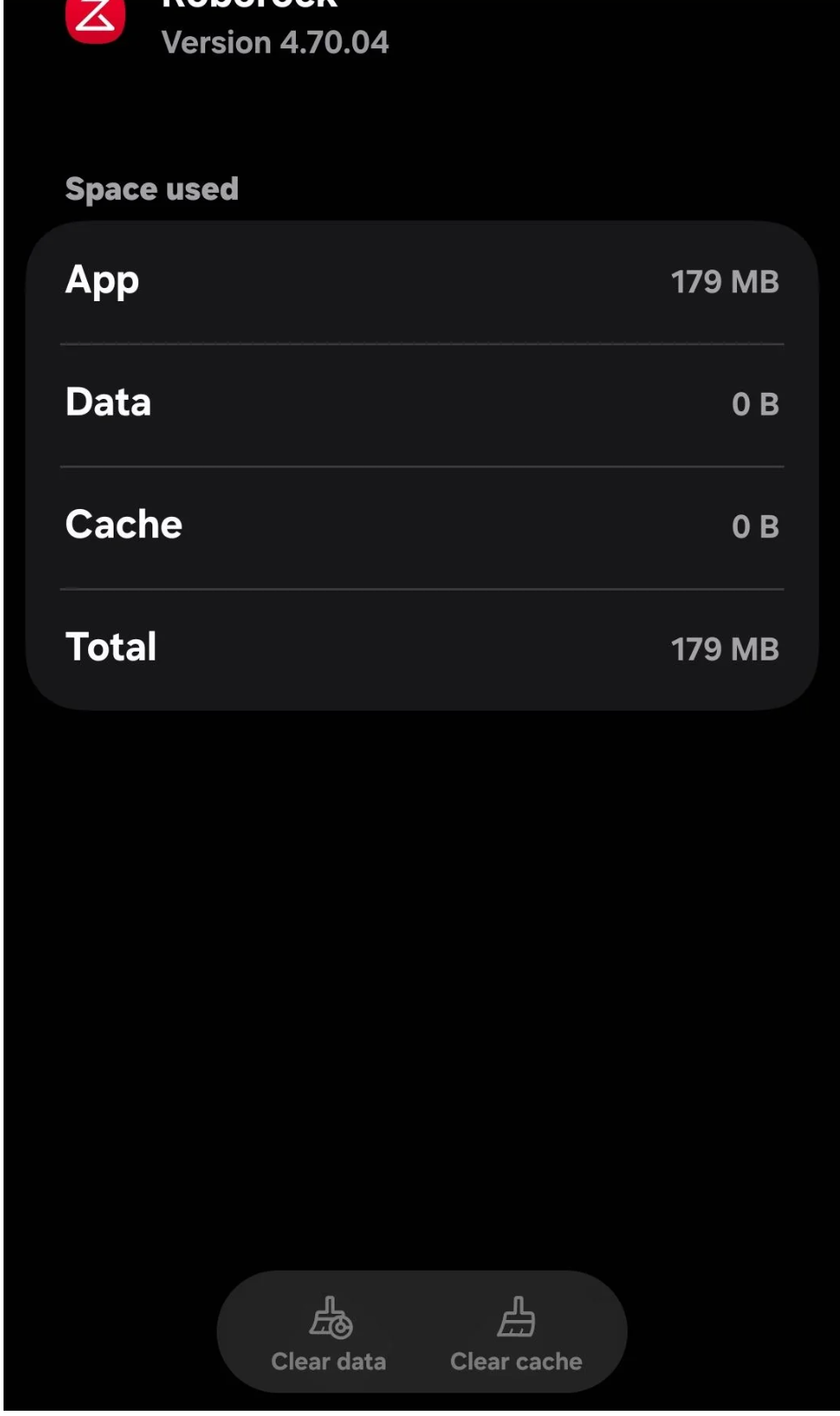
- Go to your smartphone OS Settings > Apps > Roborock > Storage.
- Tap Clear Cache and then Clear Storage / Clear Data (this wipes deep corrupted local files).
- Re-open the app, log back into your account, select your vacuum, and wait 60–90 seconds for your map schema to safely download from the cloud.
Why Is There a “Facebook” Error on My Vacuum App?
When this crash screen first hit my phone, my immediate concern was security. Did my Roborock account get hacked? Is Facebook secretly logging my home’s floor layout?
I dug into the technical architecture, and the actual explanation is much less dramatic—though no less annoying:
- React Native Architecture: The native Roborock app is built on React Native—a popular cross-platform mobile development framework created and maintained open-source by Meta (Facebook).
- Unhandled JavaScript Exceptions: When the app tries to render dynamic map overlays or process telemetry data sent from cloud servers, it runs JavaScript code over iOS or Android native drivers.
- Null Reference Trigger: A recent server-side API update or temporary payload mismatch delivered a missing parameter or null value to the user interface. Instead of failing quietly, the frontend threw an unhandled runtime error, exposing Meta’s internal framework crash log directly on your screen.
In short: It is not an account sync glitch or a Facebook privacy leak. It is simply a frontend rendering bug caused when the app fails to parse map telemetry data properly.
What Doesn’t Work (Save Yourself the Time!)
When I was trying to solve this on my own device, I tried all the standard lazy “troubleshooting steps” you usually read online. Save yourself the headache—these quick fixes almost always fail because the corrupted map state remains locked inside deep app cache memory:
- Simple App Restart: Force-closing and re-opening the app might briefly clear the overlay, but the very second you tap into your robot’s map or select a room, the red screen instantly returns.
- Toggling App Languages: Switch settings from English to German and back temporarily forces string table re-renders, which hides the bug for a minute. However, as soon as a cleaning cycle finishes, it crashes again.
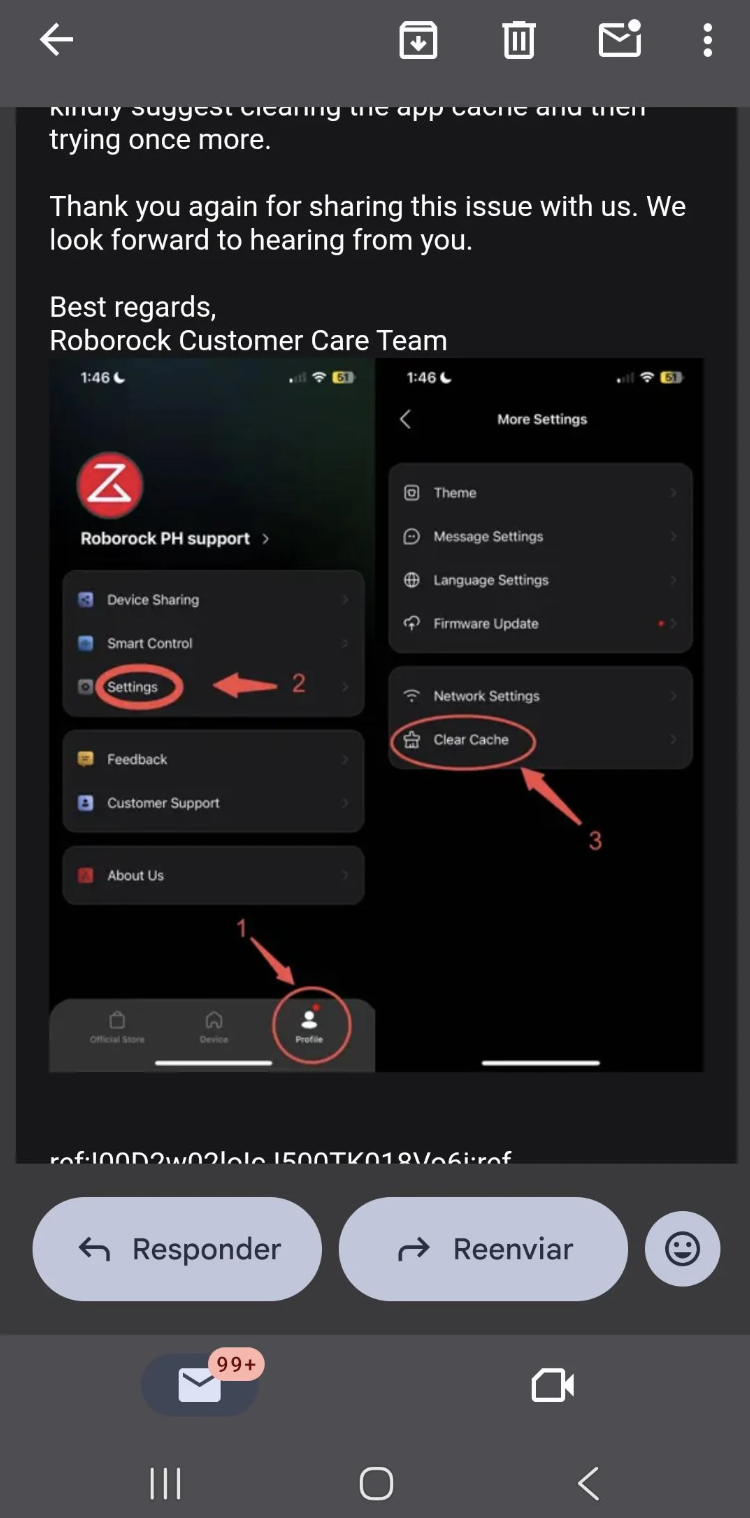
- In-App “Clear Cache” Button: Tapping “Clear Cache” inside the app’s internal profile menu only clears basic image caches—it leaves deep user storage states untouched, keeping the faulty map file active.
Step-by-Step Fix: How I Restored My Map & Cleared the Crash
To permanently wipe this error and force a clean handshaking state between your phone and Roborock’s cloud servers, you must execute an OS-level deep cache purge. Follow my exact sequence below:
Step 1: Force a Complete OS-Level Data Wipe
Instead of using the useless internal app menu button, purge storage directly from your smartphone operating system:
- On Android: Open phone Settings > Apps > Roborock > Storage & Cache. Tap Clear Cache, then tap Clear Storage (Clear Data).
- On iPhone (iOS): Since iOS handles app cache strictly, go to Settings > General > iPhone Storage > Roborock. Tap Offload App, or uninstall the app entirely to delete residual local memory.
Step 2: Reinstall & Re-Authenticate
Download a fresh, clean copy of the Roborock app from the Apple App Store or Google Play Store. Launch the app and sign back into your user account.
Step 3: Force Cloud Map Re-Sync
Once logged in, tap on your vacuum model. You should see a progress loading bar as the app fetches your map schema directly from cloud backup servers. Give the map 60–90 seconds to fully hydrate and render. Do not touch the screen while it syncs!
What to Do If the Map Is Still Failing
If you finished the deep OS wipe and your app still throws an exception screen, the issue is likely caused by an external API conflict or a corrupted Wi-Fi handshake on the vacuum physical board:
- Disable Third-Party Integrations Temporarily: If you run Home Assistant, Homebridge, or custom API scripts, turn off their polling modules briefly. High-frequency API calls during server instability trigger rate limits, causing map rendering to fail.
- Re-establish Wi-Fi Configuration: Press and hold both top buttons on your Roborock vacuum (Power + Dock) for 3–5 seconds until you hear the voice prompt “Resetting Wi-Fi”. Re-pair the device to your 2.4GHz home Wi-Fi network. This creates a fresh network handshake without deleting your cloud-saved floor plan!
- Avoid Full Physical Factory Resets: Pushing the physical pinhole reset button under the vacuum lid should be your absolute last resort. A factory reset permanently wipes your saved house maps, forcing you to run full mapping cycles from scratch.
Who Should Buy a Roborock Vacuum (And Who Should Upgrade?)
Who Should Buy
- Busy households with pets/kids: Unmatched obstacle avoidance and automated mop-washing capabilities.
- Multi-story homeowners: Exceptional multi-floor cloud map saving features.
- Bargain Hunters: Outstanding value when snagged during major promo windows on our Roborock sales calendar.
Who Should Skip
- Off-grid / Zero Wi-Fi Users: Roborock’s top features rely on active cloud communication and smartphone apps.
- Minimalists on a Tiny Budget: Premium models carry flagship price tags unless you shop with an active Roborock discount code.
Frequently Asked Questions (FAQ)
1. Will clearing my Roborock app data delete my saved home maps?
No! Your floor maps, custom room labels, and no-go zones are safely stored in your cloud account, not inside your phone’s temporary local cache. Once you log back in after wiping storage, your map hydrates automatically from the server.
2. Is Roborock owned by Facebook or Meta?
No. Roborock is an independent smart home appliance manufacturer. The reference to Facebook appears only because their mobile user interface is built using React Native—an open-source coding platform developed by Meta engineers.
3. Why did this error suddenly appear without an app update?
This bug is usually triggered server-side. When Roborock updates telemetry protocols or map rendering code on cloud servers, old cached data on your phone becomes incompatible, triggering an unhandled React rendering crash.
4. Where can I find valid deals if I want to upgrade my vacuum?
If you’re looking to upgrade to newer models like the Q Revo series or S8 MaxV Ultra, check out my curated list of verified Roborock discount codes and bookmark our annual Roborock sales calendar to catch major sitewide price drops!
Final Thoughts & My Recommendation
Seeing a developer screen loaded with scary raw code can ruin your morning—especially when all you wanted was clean floors! But rest assured, an OS-level storage wipe is all it takes to clear the corrupted cache and bring your smart vacuum back to life.
I hope this step-by-step fix saved you time and saved your house map! If you’re currently shopping around for extra accessories or considering upgrading your cleaning setup this season, don’t forget to stop by my official Roborock discount code pillar page for exclusive promo deals, or view our Roborock sales calendar to time your purchase perfectly for maximum savings!
Have questions about another Roborock glitch or deal? Drop a message on my blog at hialinta.com!

